
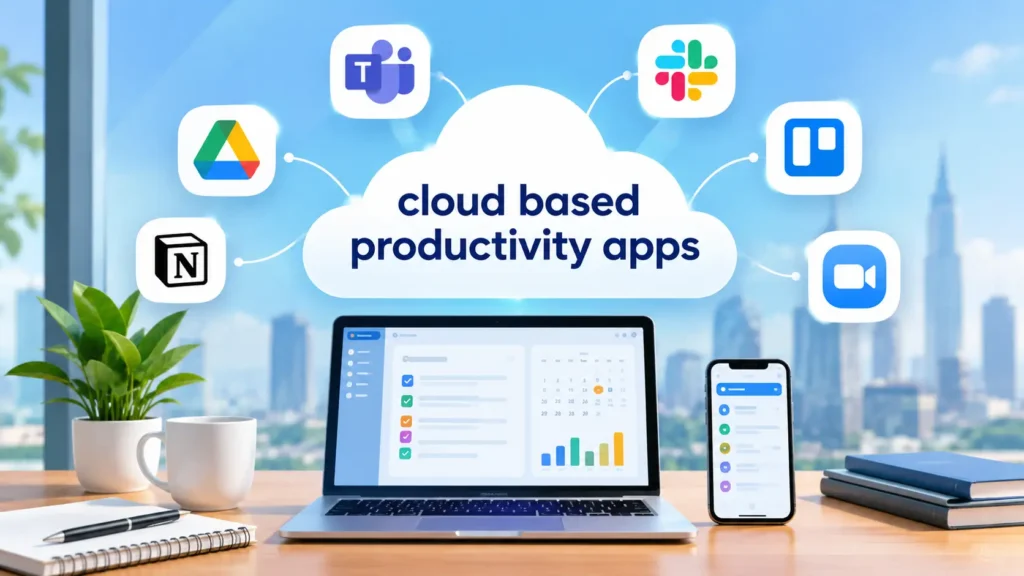
Work looks different now. Many Americans work from home, from coffee shops, or from a mix of both. Teams are spread across time zones. Files, tasks, and chats need to live in one place that everyone can reach.
That is why cloud based productivity apps matter so much in 2026. They let you work from any device, share files in seconds, and keep your team on the same page.
But there are so many choices. Which ones are truly worth your time?
This guide helps you decide. You will see the top 10 best cloud based productivity apps, what each one does well, and who should use it. You will also learn how to stay safe online and avoid common mistakes.
This blog is brought to you by RankWithMahnoor. We help brands share clear, helpful content that people trust.
Let’s dive in.
What Are Cloud Based Productivity Apps?
Cloud based productivity apps are tools you use through the internet. You do not need to install heavy software on one computer. Your work is saved online, so you can open it anywhere.
They cover many jobs, such as:
- Writing documents and building spreadsheets
- Managing tasks and projects
- Chatting with your team
- Storing and sharing files
- Planning your day
You may also hear them called cloud productivity tools, online workspace apps, or team collaboration software. They all mean about the same thing.
The big idea is simple. Your work lives in the cloud, not on one device.
How Cloud Productivity Tools Work
When you save a file in a cloud app, it goes to secure servers online. The app keeps a copy there. When you log in on another device, you see the same file.
Most apps also sync in real time. If a coworker edits a document, you see the change at once. No more emailing files back and forth.
Many tools now work offline too. You can keep working on a flight. When you get back online, the app updates everything on its own.
AI features are also common in 2026. Many apps can sum up long documents, write first drafts, or suggest next steps. This saves a lot of time.
Key Benefits for US Teams and Freelancers
Why do so many people use these tools? Here are the main reasons:
- Work from anywhere. All you need is a device and internet.
- Better teamwork. Everyone sees the latest version of a file.
- Less clutter. Tasks, notes, and files stay in one place.
- Easy to scale. Add team members as you grow.
- Automatic backup. Your work is saved even if your laptop breaks.
For freelancers, these apps help you look organized and professional. For teams, they cut down on missed tasks and long email chains.
How We Chose the Best Productivity Apps
There are hundreds of apps out there. We did not want to list them all. We picked the ones that US users trust and use every day.
Here is what we looked at:
- Ease of use: Can a new user learn it fast?
- Collaboration: Can people work together without stress?
- Integrations: Does it connect with other popular apps?
- Security: Does it protect your data with strong features?
- Mobile access: Does it work well on phones and tablets?
We also thought about different users. A freelancer needs something simple. A large team needs more power.
Keep this in mind as you read. The best app is the one that fits how you work.
Top 10 Cloud Based Productivity Apps in 2026
Below are our top picks. Each one is popular, reliable, and used by millions of people.
For every app, you will see who it is best for, its main features, and the pros and cons. Read them all, then check the comparison table to see them side by side.
1. Google Workspace
Best for: Real-time teamwork and simple document sharing.
Google Workspace includes Gmail, Docs, Sheets, Slides, Drive, Calendar, and Meet. Everything works in your browser. It is one of the most loved cloud based productivity apps in the USA.
Key features:
- Real-time editing with comments
- Shared drives for team files
- Built-in video meetings
- Smart AI help with Gemini
Pros: Easy to learn. Great for sharing. Works smoothly on any device.
Cons: Advanced spreadsheet tools are lighter than some desktop programs.
If your team wants a simple setup that just works, this is a strong first pick.
2. Microsoft 365
Best for: Teams that rely on Word, Excel, and PowerPoint.
Microsoft 365 brings the famous Office apps to the cloud. It also includes Teams, OneDrive, Outlook, and more. Many US companies already use it, so it feels familiar.
Key features:
- Full Word, Excel, and PowerPoint
- Teams for chat and video calls
- OneDrive cloud storage
- Copilot AI help inside apps
Pros: Powerful tools. Strong features for data work. Trusted by large companies.
Cons: It can feel crowded for new users.
If you work with big spreadsheets or formal documents, Microsoft 365 is hard to beat.
3. Notion
Best for: Notes, wikis, and flexible workspaces.
Notion is like a blank canvas. You can build notes, task lists, databases, and team wikis in one place. Freelancers and startups love it for its freedom.
Key features:
- Pages and databases that you can customize
- Templates for almost any use
- Notion AI for writing and summaries
- Easy sharing with teammates
Pros: Very flexible. Looks clean. Great for knowledge sharing.
Cons: The setup takes time. New users may feel lost at first.
Notion works best when you enjoy shaping your own system.
4. Asana
Best for: Clear task and project tracking.
Asana helps teams see who is doing what and by when. It turns big goals into small tasks. Many marketing and operations teams in the US use it daily.
Key features:
- Task lists, boards, and timelines
- Project goals and progress tracking
- Workflow automation
- Easy task assignments
Pros: Clean design. Strong for planning. Keeps deadlines visible.
Cons: Some advanced views need a higher plan level.
If your team juggles many projects, Asana keeps things on track.
5. ClickUp
Best for: Teams that want many tools in one app.
ClickUp tries to replace several apps at once. It offers tasks, docs, goals, dashboards, and chat. It is one of the most feature-rich project management apps today.
Key features:
- Many views, such as list, board, and calendar
- Built-in docs and whiteboards
- Custom dashboards
- AI help for writing and summaries
Pros: Very powerful. Highly customizable. Replaces several tools.
Cons: So many options can feel heavy at first.
ClickUp is great if you like control and want everything in one place.
6. Trello
Best for: Simple visual task boards.
Trello uses boards, lists, and cards. You drag a card from “To Do” to “Done.” It is easy to understand in minutes, which is why many small teams and solo workers like it.
Key features:
- Kanban boards
- Checklists and due dates
- Butler automation for repeat tasks
- Power-Ups to add more tools
Pros: Super easy to use. Visual and clear. Fast to set up.
Cons: Large projects may need more depth.
Trello is a smart pick when you want simple and fast.
7. Slack
Best for: Team chat and quick communication.
Slack replaces long email threads with organized channels. You can talk by topic, project, or team. It also connects with hundreds of other apps.
Key features:
- Channels and direct messages
- Quick audio huddles
- Search through past chats
- Strong app integrations
Pros: Fast communication. Easy to follow topics. Great app connections.
Cons: Too many alerts can distract you.
Tip: set quiet hours so Slack helps you focus instead of pulling you away.
8. Monday.com
Best for: Visual workflows and team dashboards.
Monday.com is a flexible work platform. You build boards for tasks, sales, marketing, or projects. The colors and layouts make progress easy to see.
Key features:
- Customizable boards
- Automations that save time
- Dashboards and reports
- Many ready-made templates
Pros: Bright and clear. Good for many team types. Easy automations.
Cons: Some features take time to learn.
Monday.com works well for teams who like to see everything at a glance.
9. Dropbox
Best for: File storage and secure sharing.
Dropbox is one of the oldest names in cloud storage, and it is still strong. It keeps your files safe and synced across all your devices. Sharing a folder with a client takes seconds.
Key features:
- Reliable file sync
- Easy sharing links
- File version history
- Tools for signing and reviewing documents
Pros: Simple and dependable. Great for large files. Easy for clients to use.
Cons: It focuses more on files than on task management.
Pair Dropbox with a task app, and you get a strong combo.
10. Todoist
Best for: Personal to-do lists and daily planning.
Todoist is a simple task manager that does one job well. You can type a task in plain English, like “call client Friday at 3.” It sets the date for you.
Key features:
- Task lists and projects
- Reminders and recurring tasks
- Labels and filters
- Sync across phone and computer
Pros: Fast and clean. Great for personal focus. Easy to learn.
Cons: Not built for very large team projects.
If you want a calm, clear way to manage your day, Todoist is a great fit.
Cloud Based Productivity Apps Comparison Table
Here is a quick side-by-side look at all ten apps.
| App | Best For | Key Strength | Mobile App |
| Google Workspace | Real-time teamwork | Live document sharing | Yes |
| Microsoft 365 | Office-style work | Powerful Word and Excel | Yes |
| Notion | Notes and wikis | Flexible workspace | Yes |
| Asana | Project tracking | Clear task timelines | Yes |
| ClickUp | All-in-one work | Custom views and docs | Yes |
| Trello | Visual task boards | Simple kanban cards | Yes |
| Slack | Team chat | Organized channels | Yes |
| Monday.com | Visual workflows | Dashboards and automation | Yes |
| Dropbox | File sharing | Reliable file sync | Yes |
| Todoist | Personal tasks | Fast, simple lists | Yes |
Use this table to narrow your list. Then try two or three apps before you decide.
If you run a software or tech brand and want your own comparison blogs to rank on Google, our team at RankWithMahnoor can help. We write SEO blogs that are easy to read and built to attract US readers.
Best Cloud Productivity Apps by Use Case
No app is perfect for everyone. Here is how to match the right tool to your situation.
For Freelancers and Solo Workers
Freelancers need tools that are simple and quick. You do not want to spend hours on setup.
Good picks:
- Todoist for daily tasks
- Trello for client projects
- Google Workspace for documents and email
- Dropbox for sharing files with clients
This mix keeps you organized and looking professional.
For Small Teams and Startups
Small teams need speed and flexibility. You also need tools that grow with you.
Good picks:
- Notion for notes and team wikis
- Asana or ClickUp for projects
- Slack for chat
- Google Workspace for core documents
Start with two or three tools. Add more only when you feel a real need.
For Remote and Hybrid Companies
Remote teams need clear communication and strong file sharing. Everyone must see the same information.
Good picks:
- Microsoft 365 or Google Workspace as the main hub
- Slack or Teams for chat and calls
- Monday.com or Asana for project views
- Dropbox for large file storage
Good remote work tools reduce meetings and help people work on their own schedule.
Are Cloud Based Productivity Apps Safe?
This is a real concern for many people. You store work, client files, and private notes online. Is it safe?
For the most part, yes. Big cloud apps spend a lot on security. They often protect data better than a single laptop does.
But safety also depends on how you use the tools.
Data Security and Privacy Basics
Look for these features when you pick an app:
- Encryption to protect files while stored and while sent
- Two-factor authentication for safer logins
- Permission controls to decide who can see or edit
- Activity logs to see who did what
Also read the privacy policy. Know how the company handles your data. If you work in health, finance, or law, check that the app meets your industry rules.
Tips to Protect Your Online Workspace
You can do a lot to stay safe. Follow these simple steps:
- Use strong, unique passwords
- Turn on two-factor login for every app
- Share files with only the people who need them
- Remove old team members from your tools right away
- Be careful with links and attachments in emails
- Keep your apps updated
Most data problems come from weak passwords or careless sharing. A few good habits go a long way.
How to Choose the Right Productivity App
Picking an app should feel easy, not stressful. Think about how you really work.
Start with your biggest problem. Do you miss deadlines? Do files get lost? Is communication messy? Choose a tool that fixes that first.
Then test it. Most apps let you try before you commit. Ask your team to test it for a week. See if people enjoy using it.
A tool that nobody uses has no value.
Questions to Ask Before You Pick
Use this checklist:
- What problem do I need to solve?
- How many people will use this tool?
- Does it connect with the apps we already use?
- Is it easy to learn?
- Does it work well on mobile?
- Does it have strong security features?
- Can it grow with my team?
If an app gets a yes on most of these, it is likely a good fit.
Common Mistakes When Using Productivity Apps
Even the best tools can fail when used the wrong way. Avoid these common errors:
- Using too many apps. More tools often mean more confusion.
- No clear rules. Decide where tasks, files, and chats should live.
- Skipping training. Take time to show your team how to use the tool.
- Ignoring security. Weak passwords put your whole workspace at risk.
- Never reviewing your stack. Remove tools nobody uses.
- Chasing trends. A new app is not always a better app.
Keep your setup simple. A small set of well-used tools beats a long list of ignored ones.
Final Thoughts on Cloud Based Productivity Apps
The right cloud based productivity apps can change how you work. They save time, reduce stress, and help your team stay connected from anywhere.
Start with one or two tools from our list. Test them, learn them, and build from there. Remember, the best app is the one you and your team will actually use.
Want more clear, helpful guides like this? Want SEO content that brings US readers to your website? Visit RankWithMahnoor at https://rankwithmahnoor.com/ and see how we can help your brand grow online.
FAQs About Cloud Based Productivity Apps
What are the best cloud based productivity apps in 2026?
Google Workspace, Microsoft 365, Notion, Asana, and ClickUp are top choices. The best one depends on your team size and how you work. Test a few before you decide.
Are cloud based productivity apps safe to use?
Most popular apps use strong encryption and secure logins. You should also use strong passwords and two-factor login. Safe habits make your data even safer.
Can I use cloud productivity apps offline?
Yes, many apps offer an offline mode. Google Workspace and Microsoft 365 are good examples. Your changes sync once you reconnect to the internet.
What is the difference between Google Workspace and Microsoft 365?
Google Workspace is great for real-time teamwork in the browser. Microsoft 365 is strong for advanced desktop tools like Excel. Your choice depends on how your team works.
Which productivity app is best for small teams and freelancers?
Notion, Trello, and Todoist are simple and flexible for small teams. They are easy to learn and quick to set up. They help you stay organized without extra stress.